Instagram removed automatic tweet-to-story sharing years ago. The integration that used to let you auto-share Twitter activity to your Instagram feed quietly died, and most guides online still haven’t caught up to that fact.
So what actually works in 2026? Three things, with very different tradeoffs depending on whether you’re on iPhone or Android, how often you do this, and whether you want to just share a tweet once or build a proper cross-posting workflow.
I’ll cover all three. I’ll also tell you which one I actually use and why the “easiest” option isn’t always the right call depending on what you’re trying to do.
Quick note: I spent a long time rebuilding my X presence from scratch after an account suspension. Part of that meant being much more intentional about reaching people across platforms instead of depending entirely on one. Cross-posting tweets to Instagram Stories became a regular part of that so this isn’t theoretical.
Why Sharing Tweets to Instagram Stories is Worth Doing
Your X following and your Instagram following are mostly different people. A tweet that lands well on X will likely resonate on Instagram too they just never see it unless you take it there.
Tweets are already short and punchy. That’s the ideal format for Stories. You’re not reformatting anything, you’re not rewriting for a different platform you’re just moving the same idea to a different room. The reuse math is simple: one piece of content, second audience, zero additional writing.
The other thing worth understanding: an average tweet has maybe 15 to 20 minutes of real visibility in an active timeline before it’s buried. An Instagram Story sits in the bar for 24 hours. Repurposing content that’s already working buys it significantly more time.
📌 What types of tweets work best as Instagram Stories
Short opinions and takes. Quotes. Announcements. Quick tips. Anything that already got solid engagement on X. Long threads don’t translate well at Story dimensions if you want to share a thread, a carousel works better than a Story. Stick to punchy single tweets for Stories.
Method 1: The Native X Share Button (iPhone only)
If you’re on an iPhone and you want to share one tweet to your Instagram Stories right now, the X app has a built-in option. Tap the share icon (the upward arrow) below any public tweet, and you’ll see Instagram Stories as an option in the share sheet.
Tap it. Instagram opens with a new Story draft. The tweet appears as a movable sticker you can resize it, drag it around, throw a background color behind it, add text or stickers on top. Then post.
Takes about 60 seconds. No extra tools, no account, no cost.
Here’s where it falls short. The tweet appears in X’s standard card format and you have no control over how it looks. You can’t change the layout, swap colors, or make it look designed rather than dropped in from another app. If you cross-post more than occasionally, you’ll notice your Stories start to look inconsistent because they’re all raw X card screenshots in different sizes depending on how you positioned them.
The bigger issue: this only exists on the X iOS app. If you’re on Android, this option simply isn’t there. Skip ahead to Method 2 or 3.
⚠️ Things the native share doesn’t do
The tweet sticker on your Story is a static image it doesn’t link anywhere. Viewers can’t tap it to open the original tweet on X. There’s also no scheduling option, no batch sharing, and no way to simultaneously post to Facebook, LinkedIn, or anywhere else. It does exactly one thing: sends one tweet to one Instagram Story, right now.
Use this when: you’re on iPhone, you want to share a single tweet in under a minute, and you’re not worried about how designed it looks.
Method 2: Screenshot and Upload (Works on Android and iPhone)
The fallback. Take a screenshot of the tweet, crop out everything you don’t want (browser bar, other tweets, your notification count), and upload the image to Instagram Stories from your camera roll. Add stickers or text on top, post.
It works. It works on every device. And it looks like exactly what it is a cropped screenshot of a tweet.
Most people stop there. The better version: before you screenshot, open Circleboom’s free Tweet Screenshot Generator at circleboom.com/tweet-screenshot. Paste the tweet URL, pick a layout and color theme, and it generates a clean styled image in seconds. No account required, completely free. The output looks like designed content instead of something grabbed off a phone screen.
I used this for a while before switching to the automated Circleboom setup. For sharing someone else’s tweet which Method 3 below doesn’t cover the Screenshot Generator is still my go-to.
Use this when: you’re on Android, or you want to share a tweet from someone else’s account (not your own), or you just need a one-off Story with no recurring workflow.
Method 3: Circleboom (The Automated Route)
This is what I actually use for my own content. Once it’s set up, sharing a tweet to Instagram Stories is a checkbox in the composer you write the tweet, select Instagram as a destination, set the Story format and theme, and Circleboom handles the delivery. You never open Instagram manually for this.
Circleboom is an official X Enterprise Developer, which matters more than it sounds. It means the tool operates through X’s official API not through browser automation or grey-area scraping. NBC News, the BBC, and L’Oreal use it. For anyone who went through the account suspension experience like I did, using tools that work through official integrations rather than around them is not optional.
The part that changes the output quality: Circleboom automatically converts your tweet into an Instagram Story-ready visual. You’re not screenshotting and hoping it looks okay. You choose a layout, pick a color theme, and the Story looks like it was designed for Instagram rather than pasted from X.
It also posts to Facebook, LinkedIn, Threads, and Bluesky at the same time if you want. One tweet, five platforms, one step.
Try Circleboom Free for 14 Days
No credit card required. Plans from $24/month after trial.
How to Share a Tweet to Instagram Stories with Circleboom
This takes about 5 minutes to do once you have your accounts connected.
Step 1: Log in to Circleboom Twitter and connect your accounts
Sign up or log in at circleboom.com. Connect your X account and Instagram account during setup. You do this once both stay connected for all future posts.

Step 2: Go to “Write and Plan Your Post” in the left sidebar
Under Post Management and Analytics in the left menu, click Write and Plan Your Post. The tweet composer opens.

Step 3: Write your tweet
Write your tweet in the composer. There’s an AI Writer built in if you want it to generate suggestions useful if you’re doing this at volume. When it’s ready, click Post or Schedule to see your platform options.
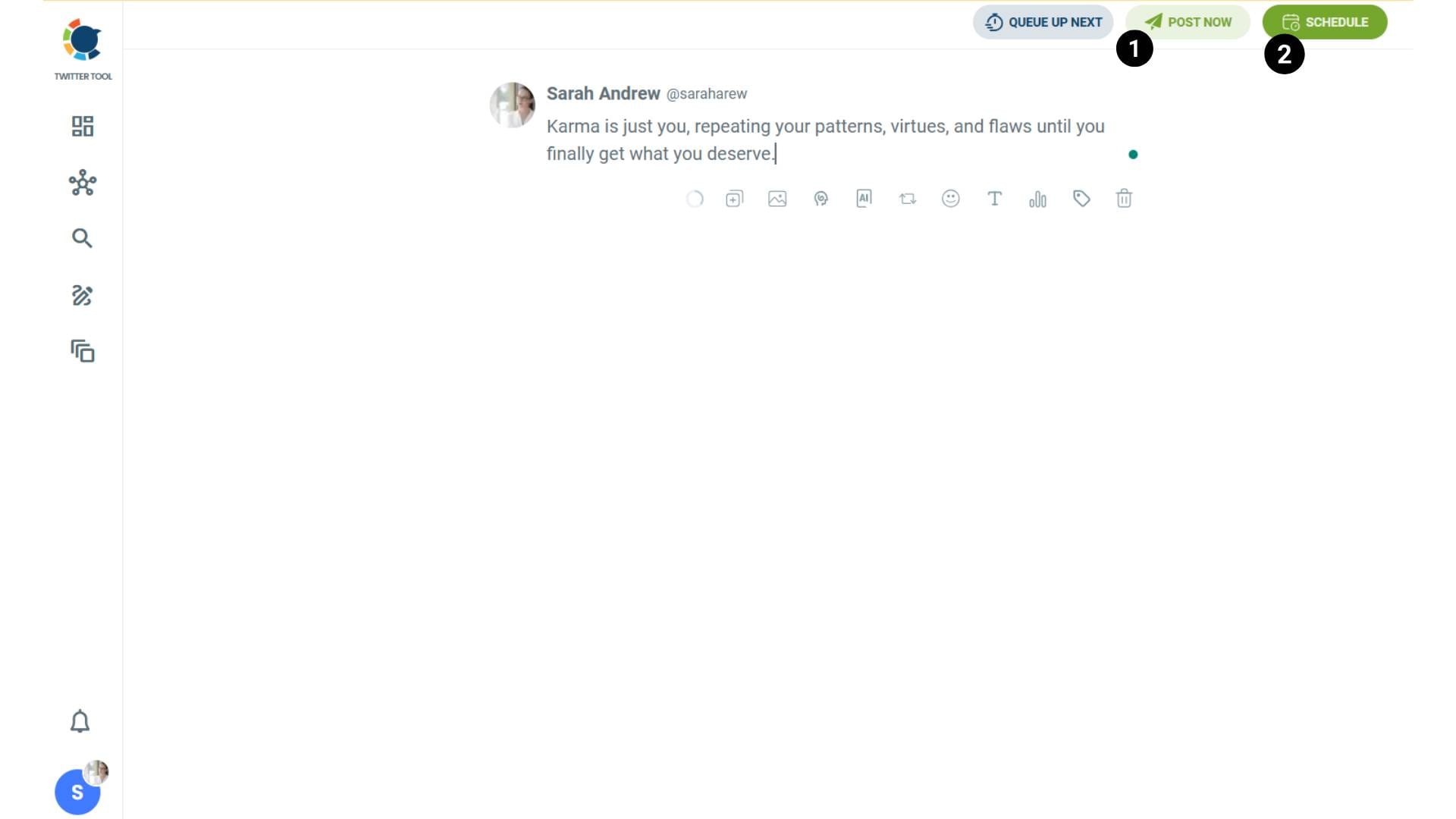
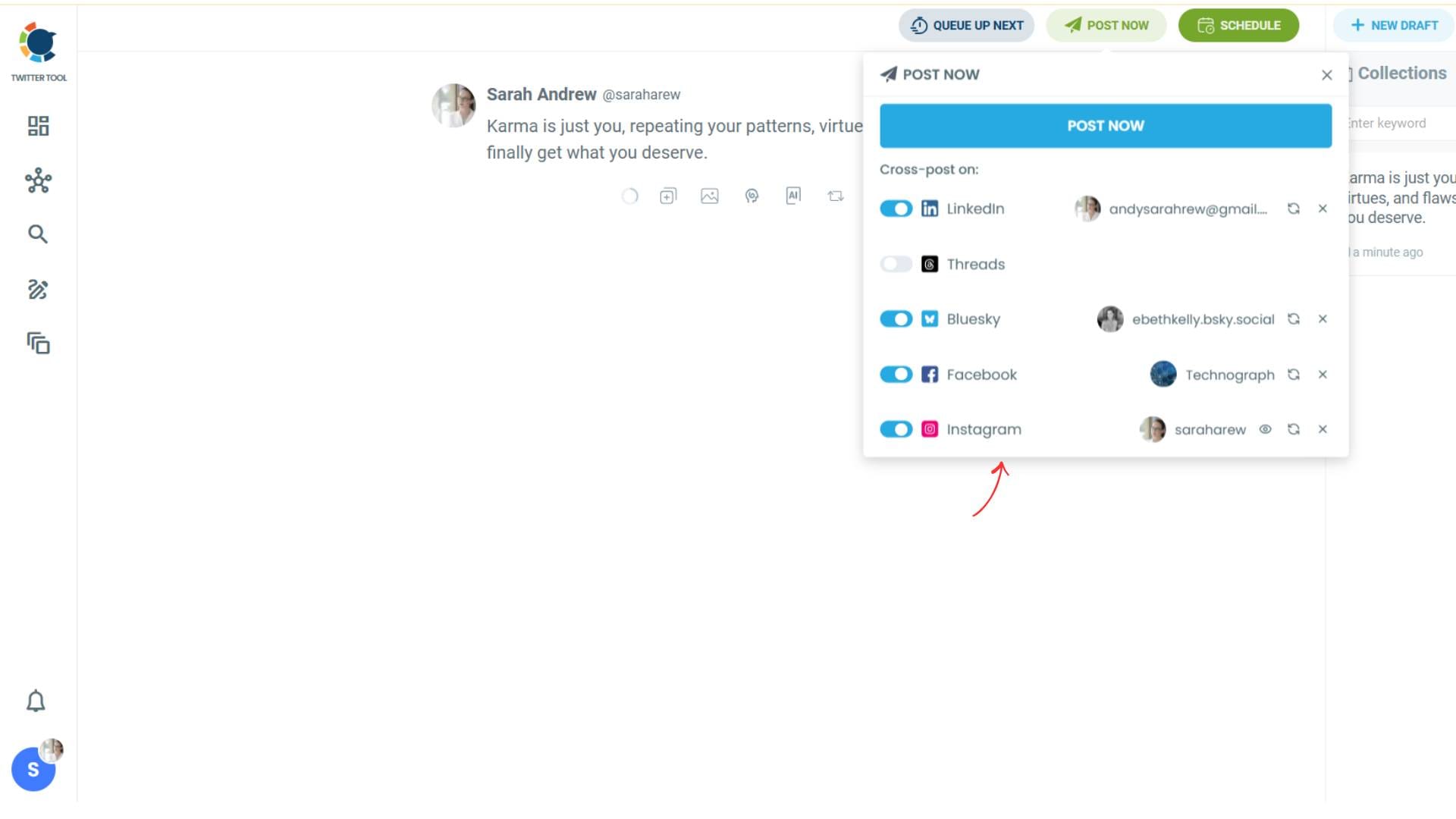
Step 4: Select Instagram from your connected platforms
Toggle Instagram on. You’ll also see Facebook, LinkedIn, Threads, and Bluesky here if you have those connected. Toggle any combination you want. Then click Preview next to Instagram to configure how the Story looks.
Step 5: Choose “Story” as the format, then pick a layout and theme
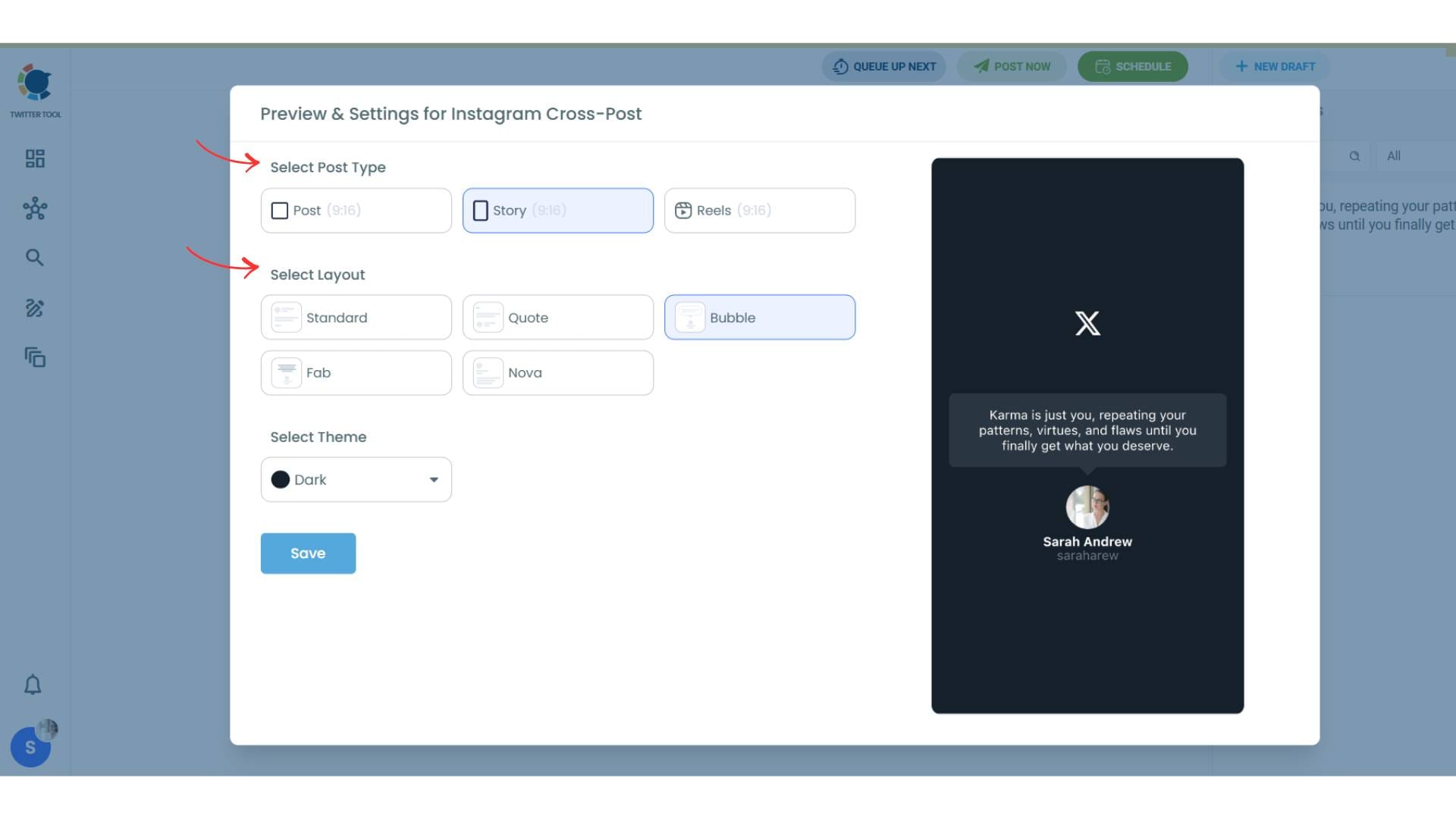
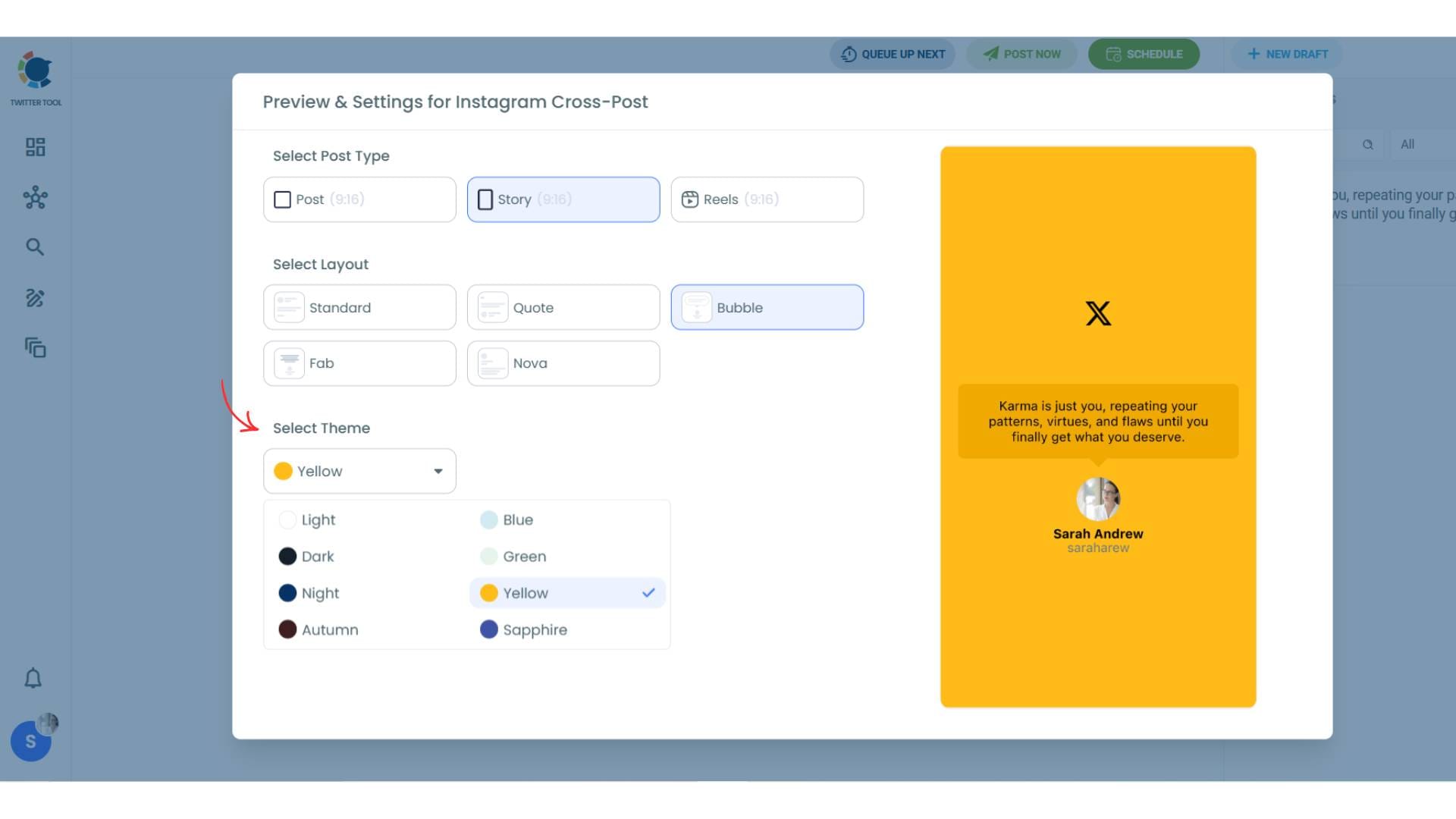
In the Preview panel, select Story (versus Post or Reels). Then pick a layout from the available templates. After that, select a color theme. This is the step that matters for how it looks different themes change the background, font color, and overall visual style of how your tweet renders in the Story frame.
Step 6: Save, then post immediately or schedule
Click Save to confirm the Instagram settings. Back in the main composer, you can publish immediately or set a specific date and time. Circleboom shows suggested posting times based on when your followers are most active the Instagram suggestions are based on your Instagram audience, not your X audience, which matters because peak times differ between the platforms.
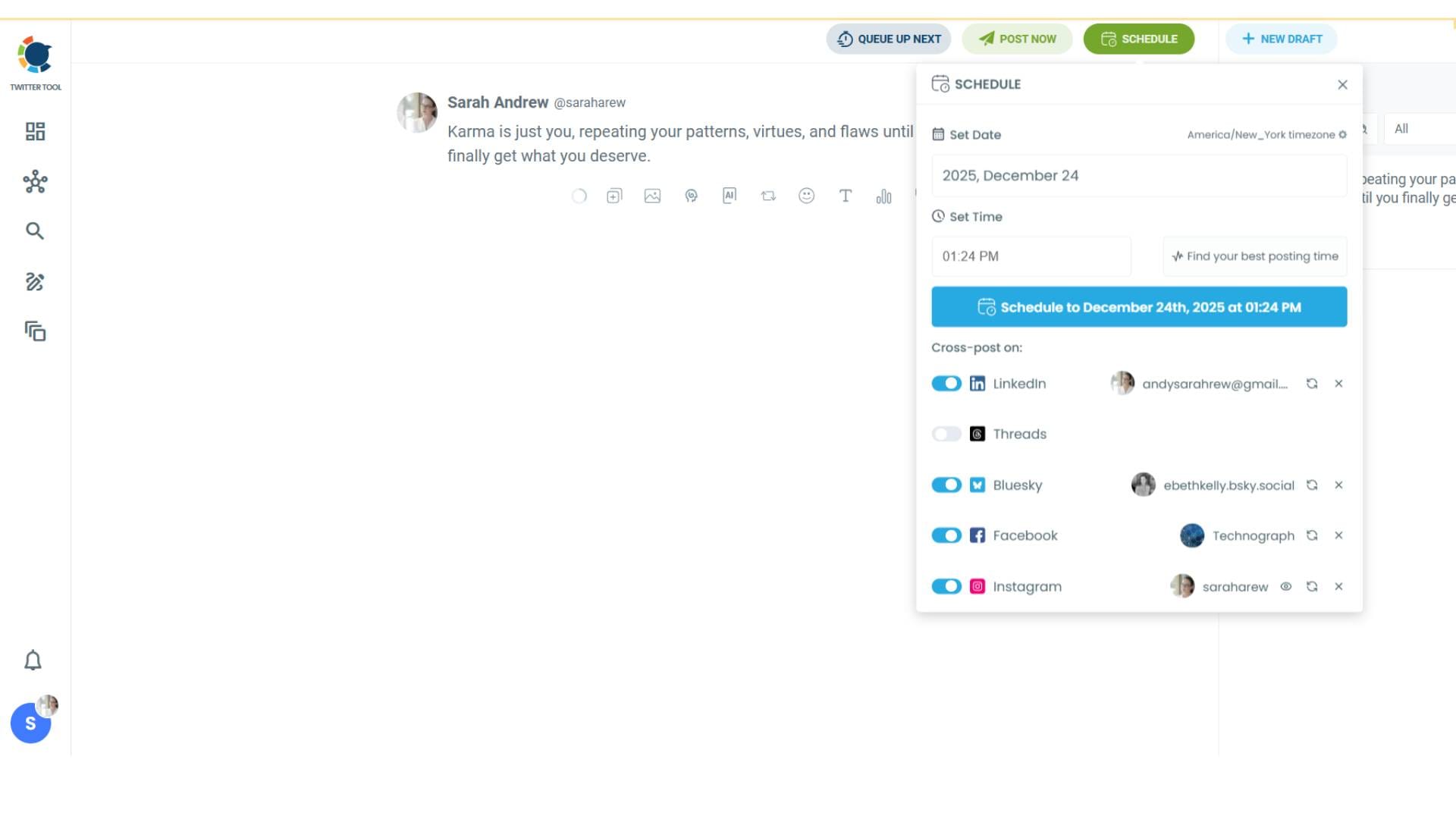
Done. The tweet goes to X and the Instagram Story goes out at the time you set, without you touching Instagram at all.
Which Method Should You Actually Use?
The honest version of this decision:
| Native X Share | Screenshot | Circleboom | |
|---|---|---|---|
| Works on Android | No | Yes | Yes |
| Design control | X card only | Basic | Full layouts + themes |
| Schedule in advance | No | No | Yes |
| Cross-post elsewhere too | No | No | IG, FB, LinkedIn, Threads, Bluesky |
| Share someone else’s tweet | Yes | Yes | Your own tweets only* |
| Cost | Free | Free | From $24/mo (14-day trial) |
*For sharing someone else’s tweet with Circleboom, use the free Screenshot Generator at circleboom.com/tweet-screenshot paste the tweet URL and download a styled image to upload manually.
The way I think about it: the native share is for when you’re already in the X app, you want to share something in the moment, and you’re on an iPhone. The screenshot method is for Android users or for sharing tweets that aren’t yours. Circleboom is the right call the moment you’re doing this more than twice a week or you care about having a consistent look across your Stories.
The $24/month cost only makes sense if you’re treating Instagram as a serious part of your content operation. If you post to Instagram once a month, the free methods are fine.
A few things that actually improve Story performance
Getting the tweet to Instagram is the easy part. Getting people to stop and engage with it takes a bit more thought.
Start with tweets that already performed. If a tweet got real engagement on X actual replies, retweets, meaningful likes the idea resonated. That same idea will land with an Instagram audience. If you’re picking random tweets to share, your Stories will feel random. Start with your top performers from the past 30 days.
Add a poll or question sticker. Instagram Stories let you layer interactive elements over any image. A quick “agree / disagree” poll tied to the tweet topic gives people something to tap. It also sends your Story to more of your followers because interactive Stories get treated differently by Instagram’s algorithm than purely static ones.
Post at Instagram time, not X time. Peak engagement on X tends to be during commute hours and lunch breaks. Instagram peaks in the evenings for most accounts. If you’re scheduling with Circleboom, use the platform’s best-time suggestions for Instagram specifically they’re generated from your own Instagram follower data, not the X data.
Use the link sticker if you’re driving to something. The tweet appears as a static image on Instagram — it doesn’t link anywhere. If you want viewers to actually follow through to your website, a thread, or a product page, add Instagram’s link sticker manually on top of the Story image. That’s the only clickable element Instagram Stories support.
Cross-post your tweets to Instagram Stories automatically
Circleboom converts your tweets into Story-ready visuals, schedules them, and delivers to Instagram, Facebook, LinkedIn, Threads, and Bluesky in one step. 14-day free trial, plans from $24/month.
Try Circleboom Free →No credit card required for the trial. Cancel any time.
Frequently Asked Questions
Can you share a tweet directly to Instagram Stories?
How do you share a tweet on Instagram Stories on Android?
Does sharing a tweet on Instagram Stories link back to the original tweet?
Can you schedule tweets to post to Instagram Stories automatically?
Is Circleboom free for sharing tweets to Instagram?
What types of tweets work best as Instagram Stories?
Can I share tweets to Facebook and LinkedIn at the same time?
Can I share tweets as Instagram Reels instead of Stories?
Related reading: